How it works
Folders in. Products out. Both directions.
The whole system is a folder in your Google Drive and a naming rule. This page is the long version — what the folders look like, how the SKU matching reads a filename, what runs once versus what runs forever, and exactly what InfiniteSync can and cannot see in your Drive.
Folder structures: per-product or flat
Two layouts, and you pick one for the whole store. They work differently enough that it's worth understanding which you're on.
One folder per product
A folder per product, named with the product title — so your Drive reads like your catalog, not like a database. Images keep their own names inside.
InfiniteSync/
  Heavyweight Tee — Red/
    hero.jpg
    back.jpg
  Enamel Mug — 12oz/
    hero.jpg
One flat folder
Every image in a single folder, with the SKU in each filename. Good for bulk shoots, where a photographer hands you 400 files at once.
InfiniteSync/
  sku_TSHIRT-RED__idx_1__hero.jpg
  sku_TSHIRT-RED__idx_2__back.jpg
  sku_MUG-12OZ__idx_1__hero.jpg
The difference is what carries the link to your product. In a flat folder it's the filename — that's what the SKU convention below is for. In per-product folders it's the folder itself: InfiniteSync tags each folder with a hidden reference to the product when it creates it, so the folder stays linked no matter what you or anyone else calls it afterwards.
That means filenames inside per-product folders are yours to choose. If you'd rather have the sku_ and idx_ prefixes in there too — for ordering, or so files still make sense when they're dragged somewhere else — there's a setting for it. In a flat folder the prefixes aren't optional, because they're the only thing doing the matching.
It's one mode per store, not a per-folder choice. Switching between them isn't a toggle you flick casually: InfiniteSync migrates your whole structure to match. Pick the one that fits how you actually shoot, and change it rarely.
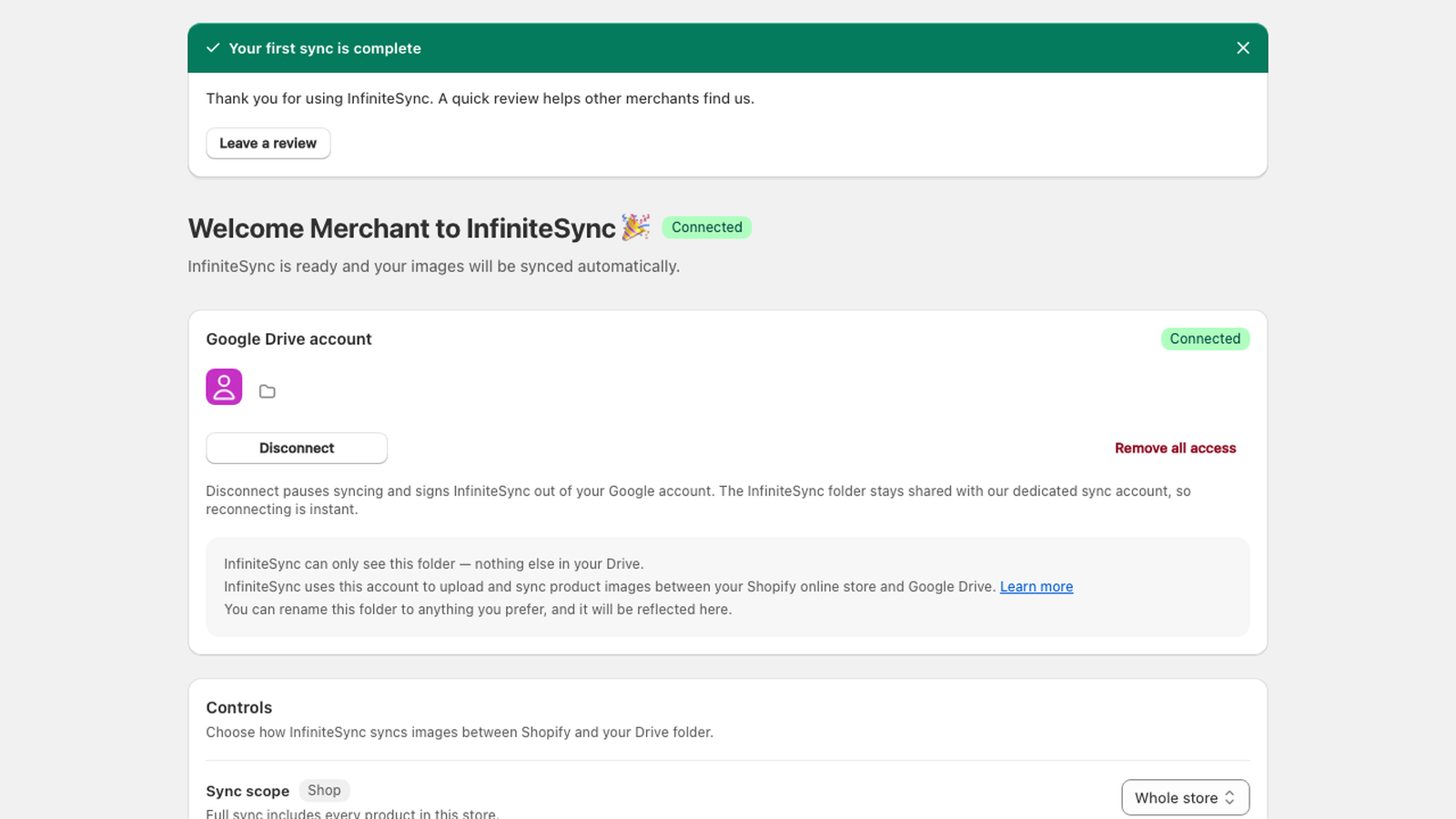
The current connection view: first sync complete, Drive connected, and access scoped to what InfiniteSync creates.
Renaming, in both directions
Because a per-product folder is linked to your product by a hidden reference rather than by its name, the name itself is free to travel — and it does, both ways.
Rename a folder in Drive, and your product is renamed in Shopify
This is two-way sync doing exactly what it says, and it catches people out. Retitle Heavyweight Tee — Red to Heavyweight Tee — Crimson in your Drive and the product title in your store changes to match. Rename the product in Shopify and the Drive folder follows instead.
It's genuinely useful — renaming a product from your desktop, offline, in a folder, is faster than the admin. But it means a tidy-up of your folder names is an edit to your live catalog. If that's not what you want, rename in Shopify and let it flow the other way.
Titles are the only non-image thing that moves. Descriptions, prices, inventory, collections, and orders are never touched — and in flat-folder mode there are no product folders, so nothing renames anything.
The SKU filename convention
This is the entire mapping step in a flat folder. There is no CSV, no column headers, no image URLs to paste. You name a file, and the name says where it goes.
sku_TSHIRT-RED__idx_1__hero.jpg
sku_— the prefix. It tells InfiniteSync that a SKU comes next, so a file calledbackdrop_grey.jpgsitting in the same folder is simply ignored.TSHIRT-RED— your SKU, spelled exactly as it appears in Shopify. This is the part that does the matching.__idx_1— the position.idx_1is the first image,idx_2the second. Renumber the files and the order in Shopify follows.__hero— your filename, kept. Everything after the position is yours and InfiniteSync doesn't touch it. This is the part that does the SEO work..jpg— the format. JPG, PNG, WebP, and GIF all work.
That fourth segment is why renaming for SEO doesn't cost you an upload. The prefix is bookkeeping; the tail is the name that ends up on your storefront. Change __hero to __heavyweight-cotton-tee-red-front in Drive and the new name follows the image into Shopify — no delete, no re-upload, no losing the image's place in the row.
Products without a SKU
Not every product has one. Those get pid_ and the product's ID instead — pid_8241__idx_1__hero.jpg — which is less readable but works identically. You don't have to invent SKUs to use InfiniteSync.
Variant images
In Shopify the SKU lives on the variant, not the product. That's convenient here: name a file after a variant's SKU and the image attaches to that variant. The red tee's photos go to the red variant, the blue tee's to blue — out of the same folder drop, in one pass, with no per-variant clicking.
One image on several variants
The size chart problem. An image that belongs on every colour doesn't need a copy per variant — stack the SKUs in the filename and one file lands on all of them:
sku_TSHIRT-RED__sku_TSHIRT-BLU__idx_9__size-chart.jpg
One file in your Drive, one image in Shopify, attached to both variants. Add a third SKU and it's on three. This is the case that makes people give up on the admin, and it's a filename.
Full sync vs. auto sync
Two different things run, and it's worth knowing which is which.
Full sync — the one-time pass
A deliberate run across your whole catalog. Most people run it once, right after installing: it pulls down every product image you already have and lays it out in folders in your Drive. That's how you get a backup of a catalog you built long before you met us.
Auto sync — what runs afterward
Once the catalog is lined up, auto sync keeps it that way without being asked, and without needing a full sync to do it. A new file in Drive becomes a new image on the product. A changed file becomes a changed image. Edit a photo on your desktop through Google Drive Desktop, and Shopify catches up on its own.
When both sides changed
If the same image was edited in Drive and in Shopify between syncs, the most recently edited version wins — the same rule you'd apply yourself. In the rare case that both were touched in the same sync window with the same timestamp, Shopify's copy is kept. It's not a coin flip, and it's not a merge.
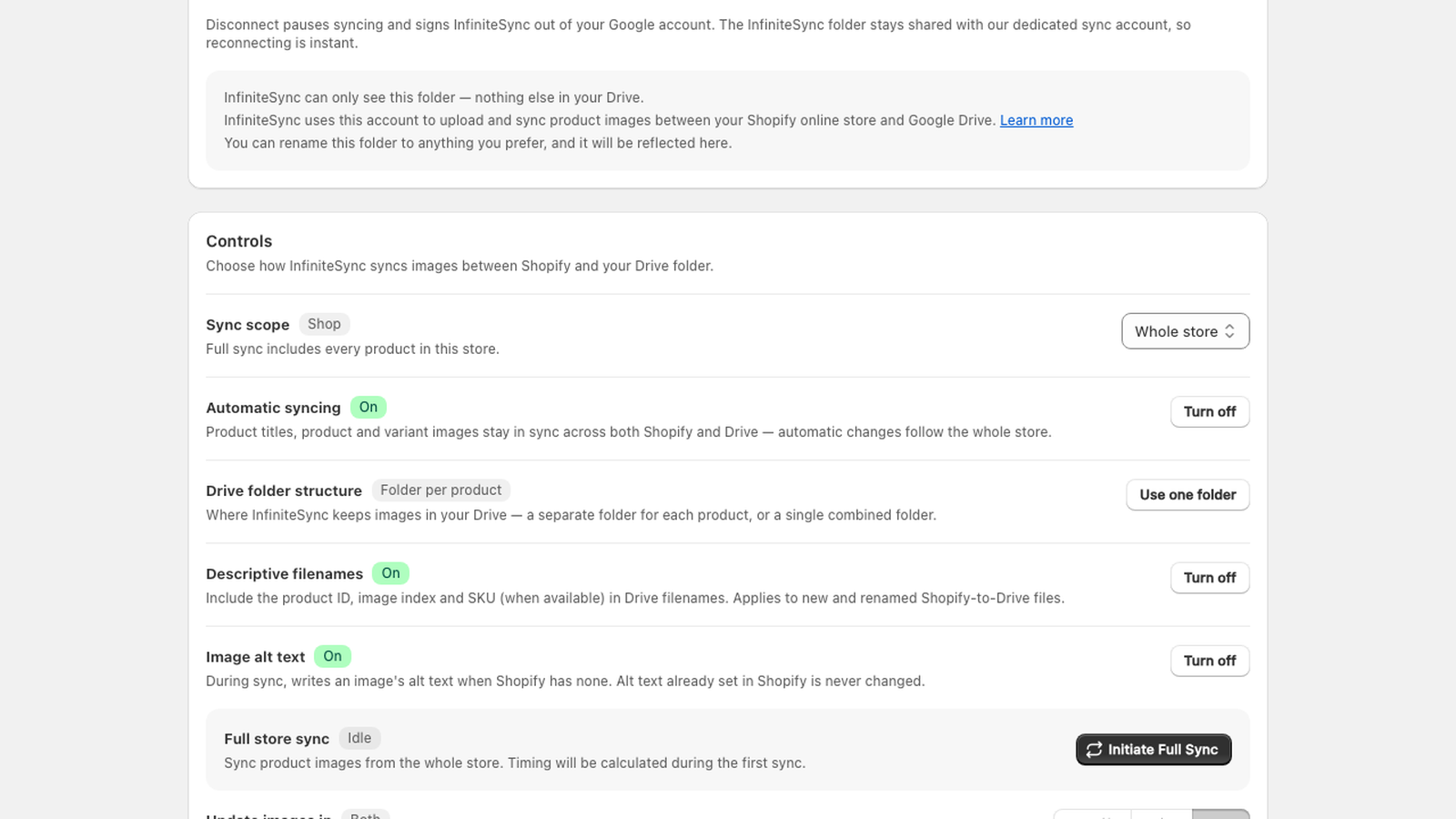
The current sync controls: choose the scope, keep automatic syncing on, and start a deliberate full sync when you need one.
This is the part the $69/mo alternatives don't do. One-way upload ends the moment the image lands in Shopify. If the photo needs a crop next month, you're back in the admin uploading it again.
About the Google permission we ask for
InfiniteSync asks Google for one Drive permission, and it's the narrow one: drive.file, the non-sensitive scope that only lets an app open files and folders it created itself. Most apps in this category ask for far more. Here's how a scope that small still does the whole job.
One folder, one visible grant
When you connect, InfiniteSync creates the InfiniteSync folder in your Drive — which the narrow scope lets it see, because it made it. Your uploads become visible to us through one explicit, visible grant: that folder is shared with InfiniteSync's dedicated sync account, the identity our servers use to process what you drop in. The sync account can see that folder and nothing else in your Drive.
Nothing about the grant is hidden. Open the folder's sharing dialog in Google Drive and the sync account is sitting in the list like any collaborator — and you can remove it there, whenever you want, without asking us first.
What we can and cannot see
Can: the InfiniteSync folder and everything you put in it. Cannot: anything else in your Drive, ever. That boundary is enforced by Google's permission model, not by our promise — access to the rest of your Drive was never granted, so there's nothing you have to take on trust.
And the old workaround — a separate photos@yourstore.com account to keep us at arm's length — is retired: the scope is narrow by construction, so a separate account no longer buys you anything.
What Google's consent screen shows — one Drive permission, and no “unverified app” warning to click through — is covered in the FAQ.